How to Setup Proxy on iPhone & Android using V2Box
Learn how to configure SOCKS5 Proxies on your smartphone using the V2Box app. A step-by-step guide for iOS and Android users to manage proxies for MMO and privacy.
How to Setup Proxy on Mobile (iOS & Android) Using V2Box App
Using a proxy on your smartphone for social media management, ad running, or MMO (Make Money Online) tasks is becoming increasingly popular. However, default mobile settings often struggle to support proxies that require a Username and Password.
Today, ProxyGen will guide you through using V2Box – the most powerful and stable application currently available for connecting SOCKS5 proxies on both iPhones and Android devices.
Preparation Before Installation
To get started, you need a high-quality proxy.
-
Visit the website proxygen.vn.
-
Register an account and purchase an IPv4 Proxy package (We recommend selecting the SOCKS5 protocol for the best speed and security on mobile).
-
Obtain the following credentials: IP Address, Port, Username, and Password from your proxy management dashboard.
5-Step Process to Install Proxy on V2Box
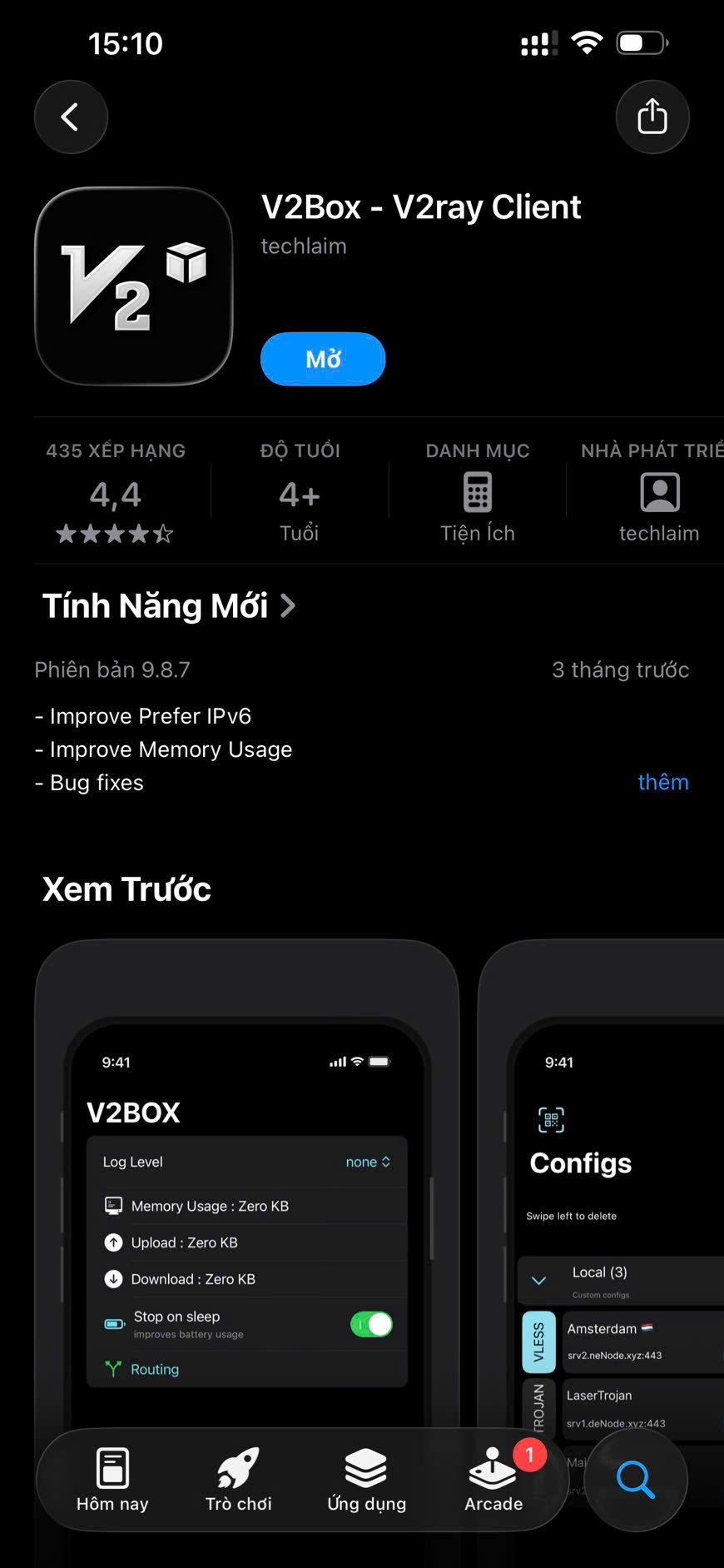
Step 1: Download the V2Box App
Access your phone's app store to download the application:
-
For iOS (iPhone/iPad): Go to the App Store and search for "V2Box".
-
For Android: Go to the Google Play Store (CH Play) and search for "V2Box".
Step 2: Manually Add Proxy Configuration
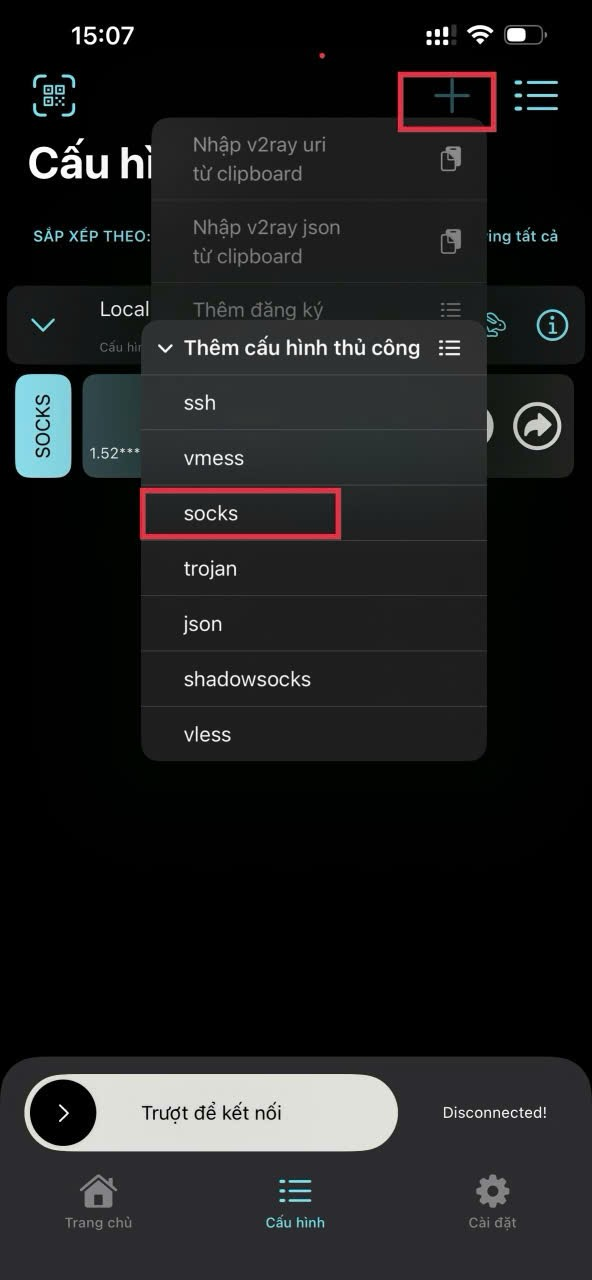
After opening the V2Box app, perform the following actions:
-
Select the Configs tab from the bottom menu.
-
Tap the plus (+) icon in the top right corner of the screen.
-
Select Manual Add.
-
From the list of protocols, select SOCKS.
Step 3: Enter Proxy Details from proxygen.vn
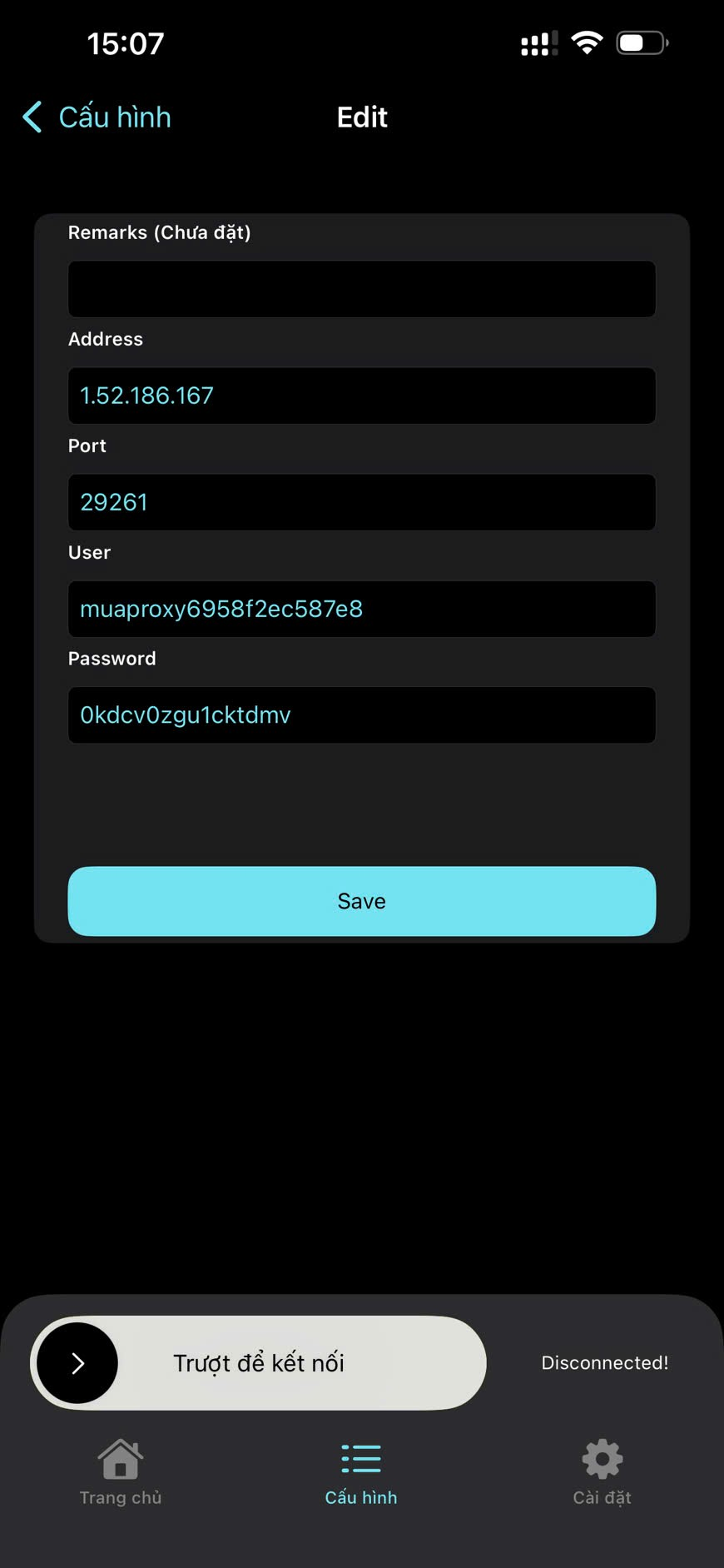
In the SOCKS configuration interface, accurately fill in your purchased details:
-
Remark: Enter any name (e.g., Proxy_VN_Proxygen).
-
Address: Enter the IP address of the proxy.
-
Port: Enter the corresponding Port number.
-
User: Your proxy username.
-
Password: Your proxy password.
-
Once finished, tap Save in the top corner.
Step 4: Connect and Use
-
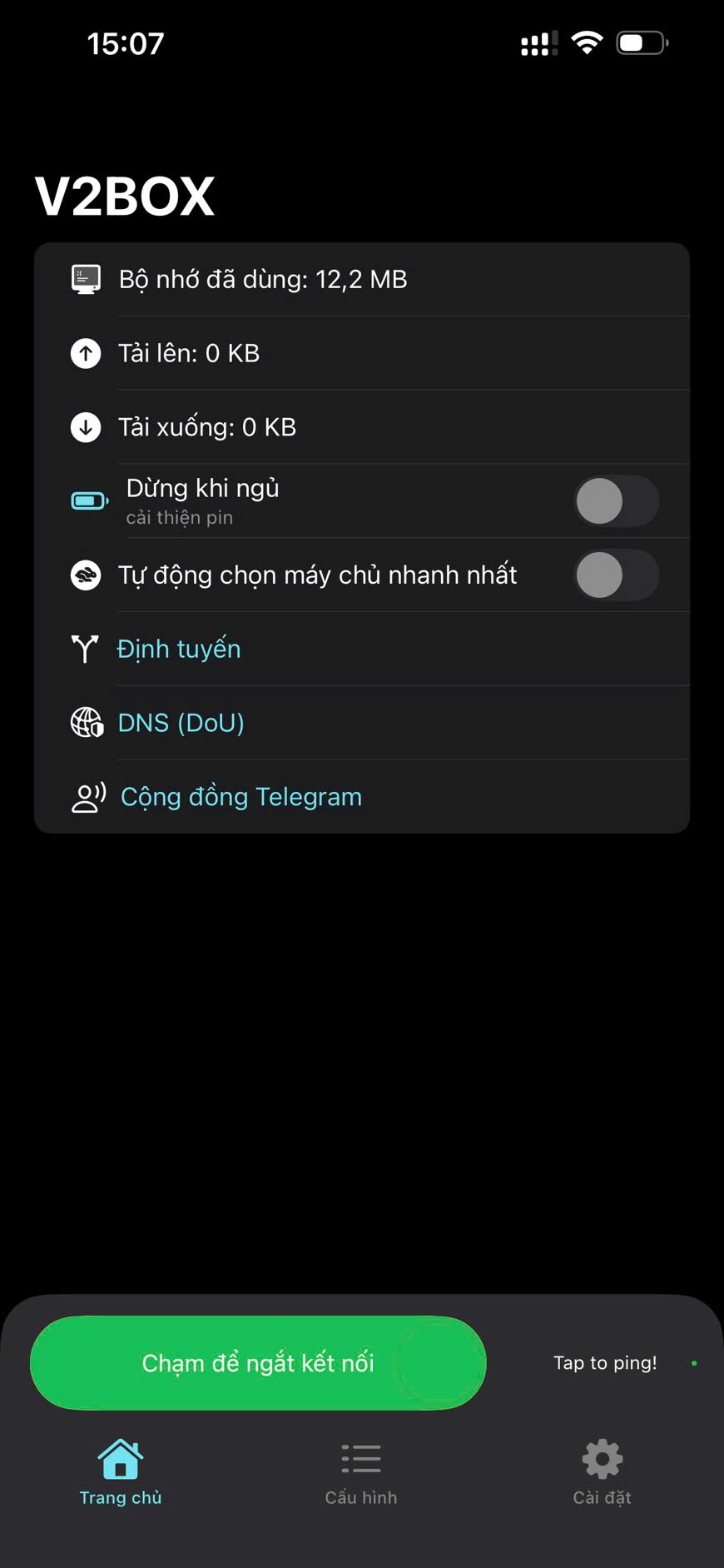
Return to the main screen of the app (the Home tab).
-
You will see your newly created configuration; tap on it to select it.
-
Slide the "Slide to connect" bar (or press the connect button) to activate the Proxy.
-
If the system asks for permission to set up a VPN connection, tap Allow.
Step 5: Verify the IP Address
Once connected successfully, to ensure the Proxy is working correctly, open your mobile web browser (Safari/Chrome) and visit: Whoer.net.
If the website displays the correct IP address and the ISP location you purchased from proxygen.vn, congratulations! Your setup is complete.
Why Use V2Box Instead of Manual Wi-Fi Settings?
-
Stability: V2Box creates a virtual tunnel (VPN), allowing the Proxy to work seamlessly even when you switch from Wi-Fi to 4G/5G.
-
Authentication Support: It solves the issue where mobile phones fail to show the login prompt for proxies requiring a password.
-
High Performance: Optimized for the SOCKS5 protocol, ensuring smooth web browsing and lag-free video streaming.
Conclusion
With just a few simple steps, you have transformed your smartphone into a powerful MMO tool using clean IPs from proxygen.vn. Don't forget to use Residential Proxies for the highest trust level for your accounts.
Related Articles for Reference:
Need to purchase bulk SOCKS5 Proxies at a discounted price? Contact the proxygen.vn Hotline today!